10.10.10.1 | 192.168.1.1 Admin
In the Philippines, Piso WiFi has become one of the most affordable and popular ways to access the internet. Among different vendo systems, LPB Piso WiFi stands out for its reliability and customer-friendly features. At the heart of this system lies the portal address 10.10.10.1, where both customers and owners can manage their connection.
For customers, this portal makes it easy to insert coins, redeem vouchers, or pause internet time. For owners, it provides complete control over the vendo machine — from checking sales to setting timer rates and limiting WiFi speed.
If you’ve ever wondered how to use 10.10.10.1 properly, this guide will walk you through every step with clear explanations, practical tips, and troubleshooting advice.
What is 10.10.10.1?
The IP address 10.10.10.1 is a private gateway address used by LPB Piso WiFi vendo machines. It is not accessible from the public internet; instead, it works only inside the local network.
- For Customers: Typing 10.10.10.1 in the browser opens the customer portal where you can insert coins, pause time, or redeem vouchers.
- For Owners: Typing 10.10.10.1/admin takes you to the admin dashboard where you can configure and monitor the entire system.
⚠️ Many new users confuse 10.10.10.1 with other addresses like 10.0.0.1 or 192.168.1.1. Always make sure you’re entering the correct IP for your vendo machine.
The reason LPB Piso WiFi uses private IPs like 10.10.10.1 is because they are secure, reusable, and designed specifically for local device communication.
How to Login to 10.10.10.1 Portal
For Customers
- Connect your phone or laptop to the LPB Piso WiFi network.
- Open your browser and type 10.10.10.1.
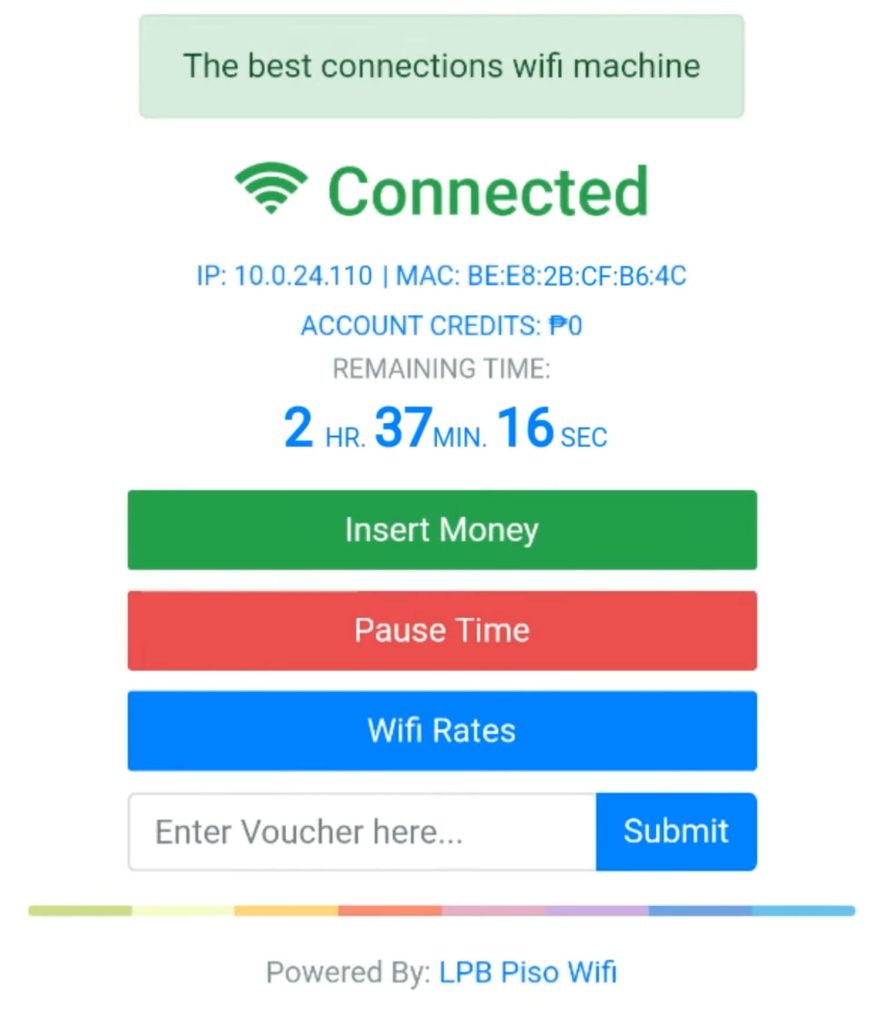
- The portal will load with options like Insert Coins, Pause Time, or Voucher Code.
- Select your action and follow the instructions on-screen.
For Owners
- Connect to the LPB Piso WiFi network.
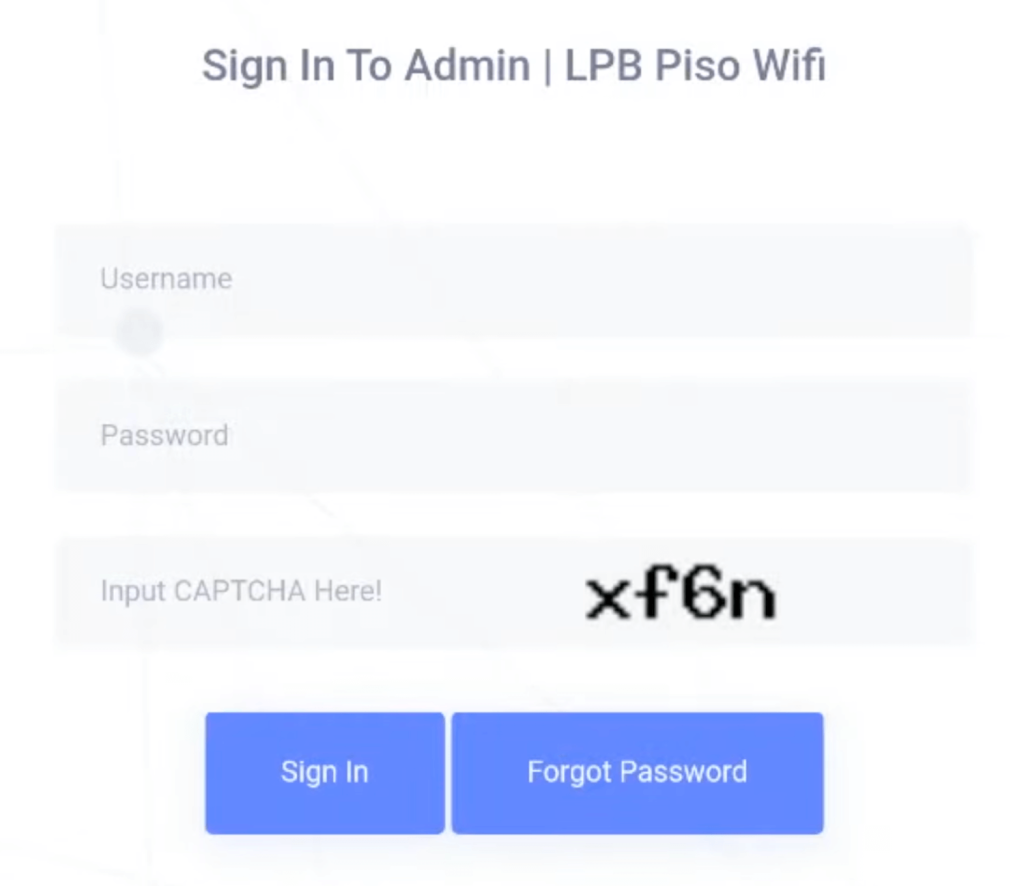
- Open a browser and type 10.10.10.1/admin.
- Enter your username and password (default: admin / 123456789).
- Once logged in, you’ll access the dashboard to manage sales, vouchers, clients, and network settings.
💡 If the portal doesn’t load, try restarting your vendo machine or checking if you typed the IP correctly.
LPB Piso WiFi Features for Customers
Insert Coins
- Open
10.10.10.1. - Click Insert Coins.
- Add coins into the vendo slot.
- Once inserted, press Connect.
- Your device will now be connected to the WiFi.
Pause & Resume Time
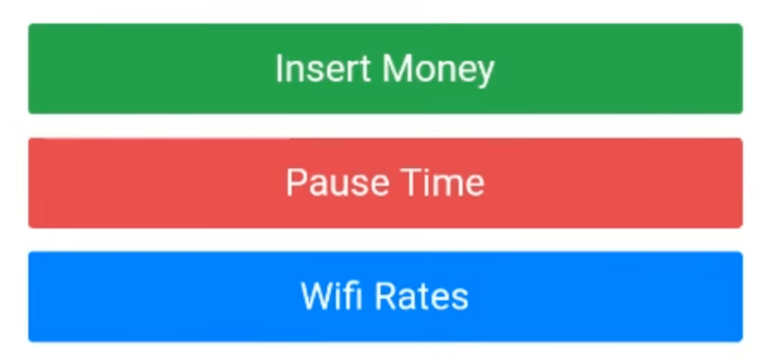
One of the most useful features of LPB Piso WiFi is the Pause Time option.
- Click Pause Time when you want to stop browsing.
- Your unused minutes will be saved.
- Click Resume Time later to continue without losing credit.
Voucher Redemption
If you have a voucher code:
- Open
10.10.10.1. - Enter your voucher code in the box.
- Click Submit.
- Your internet time will be added instantly.
Customer Benefits
- Affordable internet for students and families.
- Flexibility to pause unused minutes.
- Easy voucher system for longer or prepaid use.
LPB Piso WiFi Features for Owners
Once logged in at 10.10.10.1/admin, owners have access to powerful tools to manage their vendo business:
- Dashboard Overview – Sales report, system health, and total income.
- Voucher Generator – Create custom vouchers with time, speed, and data limits.
- Timer Rates – Set rates like ₱10 = 3 hours, ₱20 = 7 hours.
- Client Management – View, block, or disconnect users.
- WiFi Speed Limiter – Set upload/download caps per user.
- System Scheduler – Automatic reboot or WiFi ON/OFF schedule.
- Security Settings – Change default login, update firmware, and secure your network.
This makes it easy for anyone — even without technical knowledge — to run Piso WiFi as a small business.
How to Generate Vouchers
- Go to Voucher Generator in the admin panel.
- Click Generate Voucher.
- Enter price, time limit, expiry date, and speed settings.
- Click Generate.
- A unique voucher code will appear, which you can print or sell.
👉 Tip: Offer student-friendly vouchers like ₱5 for 1 hour to increase sales.
How to Add Timer Rates
- In the admin panel, select Timer Rates.
- Click Add Rates.
- Example: 10 pesos = 3 hours; 20 pesos = 7 hours.
- Save your changes.
Timer rates help owners adjust pricing to match local demand and customer affordability.
How to Set WiFi Speed Limit
- Go to Network → Speed Limiter.
- Choose Global Limit (all users) or Per User Limit.
- Example: 2 Mbps download / 1 Mbps upload per user.
- Save settings.
⚡ This prevents one user from using all the bandwidth for downloads or streaming.
Common Problems with 10.10.10.1 and Fixes
- Page Not Loading → Restart vendo or recheck IP address.
- Coins Not Detected → Clean coin slot or check hardware.
- Invalid Voucher → Verify expiry or data capping.
- Slow Internet → Adjust speed limiter or restart router.
- Forgot Admin Password → Reset vendo box to factory settings.
Security Tips for Owners
- Change the default admin password immediately.
- Update firmware regularly for bug fixes.
- Use WPA2 or WPA3 WiFi encryption.
- Enable MAC filtering to stop freeloaders.
- Hide SSID if you want more control over access.
Alternative IP Addresses for Piso WiFi
If 10.10.10.1 doesn’t work, your vendo machine might use another IP:
- 10.0.0.1
- 192.168.1.1
- 192.168.0.1
- 192.168.10.1
Always check your machine’s manual or sticker for the correct login address.
LPB Piso WiFi vs Other Piso WiFi Systems
Compared to other vendo systems, LPB Piso WiFi is known for:
- More stable software and updates.
- Customer-friendly features like Pause Time.
- Reliable voucher generator.
- Easy-to-use admin interface.
Other brands may be cheaper but often lack stability and after-sales support.
FAQs
Q: What is the default login for LPB Piso WiFi?
A: Username: admin | Password: 123456789.
Q: Can I pause my remaining time?
A: Yes, simply click Pause Time at 10.10.10.1.
Q: What if 10.10.10.1 doesn’t open?
A: Restart your vendo machine and check if you typed the correct IP.
Q: Can I use LPB Piso WiFi without coins?
A: Only if you have a voucher or the owner provides free access.
Q: Is Piso WiFi secure?
A: Yes, but owners should change default login details and enable encryption.
Final Thoughts
The 10.10.10.1 LPB Piso WiFi portal is the key to managing affordable internet access for both customers and vendo owners. Customers can easily insert coins, pause time, and redeem vouchers, while owners enjoy full control through the admin dashboard.
By learning how to use this portal properly, you can avoid common issues, maximize your browsing time, or run a successful Piso WiFi business.