Every home or office network runs through a router, and to control that router, you need access to its admin panel. The most common way to do this is by typing 192.168.1.1 into your web browser. This private IP address opens the door to settings like WiFi passwords, security controls, and parental filters.
In this updated 2026 guide, we’ll explore everything about 192.168.1.1: how to log in, what to do if it doesn’t work, Piso WiFi pause features, alternative IP addresses, and security tips that will keep your network safe.
What is 192.168.1.1?
192.168.1.1 is a private IP address used by many router brands as their default gateway. Unlike public IPs that identify your network on the internet, private IPs only work inside your home or office. Think of it as a backstage pass that gives you direct access to your router’s control panel.
Many people confuse it with 192.168.l.l (the letter L), but that’s just a typing mistake. The correct format always uses numbers separated by dots.
Why Routers Use Default IPs
Router companies like TP-Link, Netgear, and D-Link assign default IPs such as 192.168.1.1 or 192.168.0.1 to make setup easier. This standardization means you don’t have to memorize random numbers; you can just enter the same IP used by millions of routers. For IT professionals, it also makes troubleshooting much faster.
How to Find Your Router’s IP Address
Not all routers use 192.168.1.1. If the page doesn’t load, you may need to check your actual router IP. Here’s how to find it on different devices:
- Linux: Open terminal and type
ip route | grep default. - Windows: Press
Win + R, typecmd, then enteripconfig. Look for Default Gateway. - MacOS: Go to System Preferences → Network → Advanced → TCP/IP tab.
- Android/iPhone: Open WiFi settings → Tap your connected network → Check Gateway.
💡 Tip: Some routers also print the login IP on the back label.
How to Find Your Router’s IP Address
- Connect your device to the router using WiFi or an Ethernet cable.
- Open a web browser and type http://192.168.1.1 in the address bar.
- A login page will appear. Enter your router’s username and password.
- After logging in, you’ll access the admin dashboard to configure settings.
⚠️ Common mistakes:
- Not being connected to the router’s network.
- Typing
192.168.l.linstead of192.168.1.1. - Using
https://instead ofhttp://.
Default Usernames and Passwords
Here’s a list of the most common default logins. If these don’t work, always check the sticker on your router or the manual.
| Brand | Default IP | Username | Password | Notes |
|---|---|---|---|---|
| TP-Link | 192.168.0.1 | admin | admin | Some models use app login |
| D-Link | 192.168.1.1 | admin | admin | May use blank password |
| Netgear | 192.168.1.1 | admin | password | routerlogin.net works too |
| Linksys | 192.168.1.1 | admin | admin | Old models only |
| Huawei | 192.168.100.1 | admin | admin | ISP-branded units common |
| ZTE | 192.168.1.1 | admin | admin | Popular with ISPs |
| MikroTik | 192.168.88.1 | admin | blank | Highly customizable |
| Globe | 192.168.254.254 | user | 1234 | Philippines ISP |
| PLDT | 192.168.1.1 | admin | 1234 | ISP customized |
| Piso WiFi | 10.0.0.1 | admin | admin | Includes pause features |
Forgot Password? Reset Safely
If you can’t log in because you forgot your password:
- Check the router label/manual: Many brands print the default login.
- Soft reset: Restart without losing saved settings.
- Factory reset: Hold the small RESET button for 10–15 seconds using a pin. This erases all custom settings and restores factory defaults.
💡 Pro Tip: Always backup your configuration before a reset if your router supports it.
How to Change Router IP Address
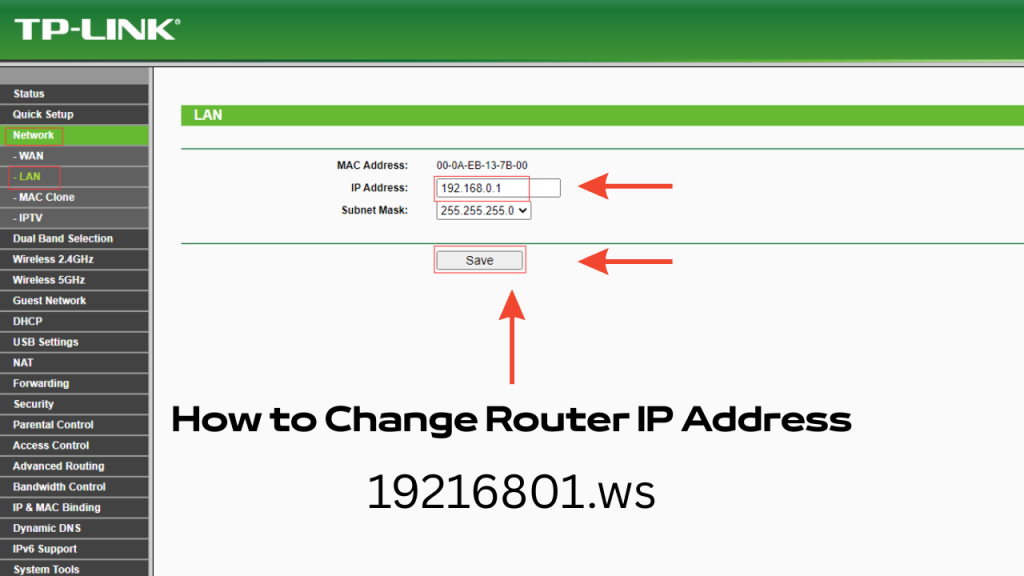
Sometimes changing your router’s IP helps avoid conflicts or adds extra security.
- TP-Link: Advanced → Network → LAN → Change IP → Save.
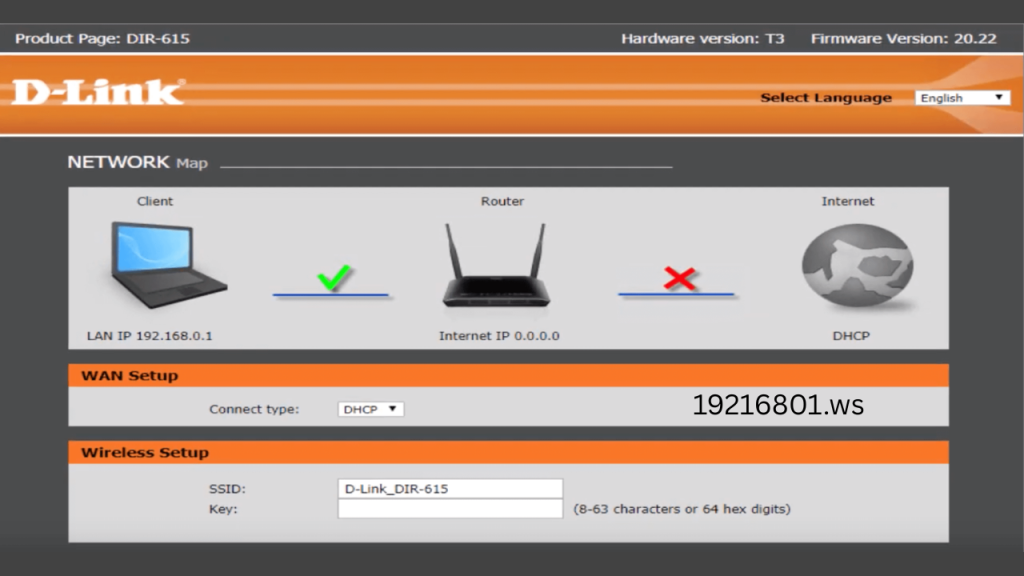
- D-Link: Setup → Network Settings → Edit IP → Save.
- Netgear: Advanced → Setup → LAN Setup → Change IP → Apply.
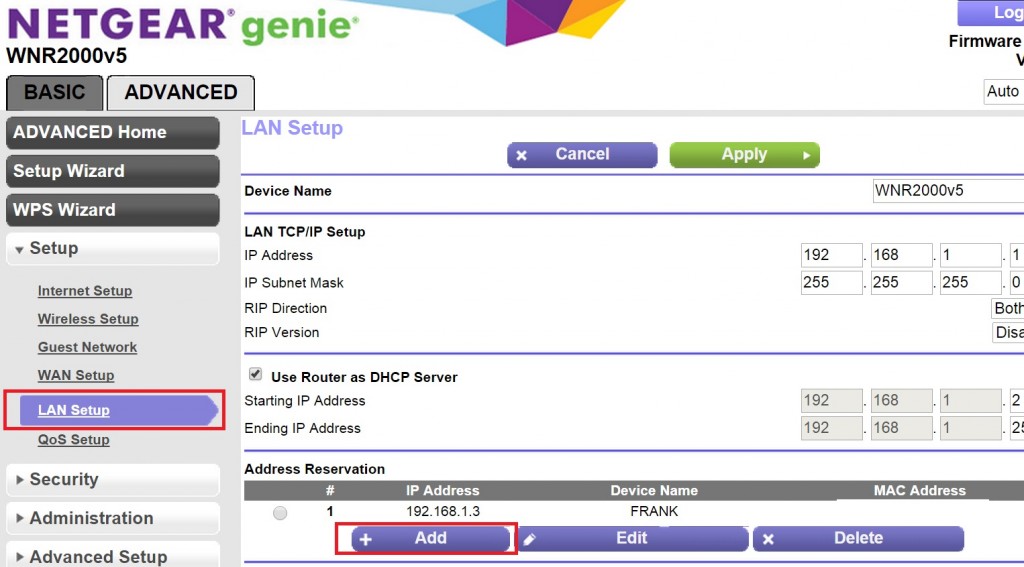
After saving, the router will reboot with the new IP.
Alternative IPs (192.168.0.1, 10.0.0.1, 10.0.0.0.1)
If 192.168.1.1 doesn’t open, try these:
- 10.0.0.0.1 → Common misspelling, but some routers redirect here.
- 192.168.0.1 → Often used by TP-Link and D-Link.
- 10.0.0.1 → Used by some ISPs and Piso WiFi.
Different brands pick different defaults, so always double-check.
Piso WiFi Special Section
In the Philippines, Piso WiFi machines allow people to pay for internet in small time blocks. These routers often use 10.0.0.1 as their admin IP.
- Piso WiFi Pause: Lets users pause their time when not browsing.
- Piso WiFi Pause Time: Allows scheduling of usage to avoid wasting credit.
- How to login: Connect to Piso WiFi → Open browser → Enter 10.0.0.1 → Use admin/admin as default.
This feature is especially useful in shared or public spaces, giving users better control of their internet usage.
Troubleshooting Common Issues
If 192.168.1.1 isn’t working:
- Page not loading: Check your device is connected to the router.
- Wrong IP: Verify using
ipconfigor phone WiFi settings. - IP conflict: Release/renew IP address from your computer.
- Firewall blocking: Disable any strict firewall temporarily.
- Browser issue: Try another browser or clear cache.
If all fails, reset the router and try again.
Security Checklist (2026 Best Practices)
Keeping your router secure is vital. Here’s a quick checklist:
- Change the default admin password immediately.
- Use WPA3 encryption (or WPA2-AES if WPA3 isn’t available).
- Disable WPS (outdated and insecure).
- Keep firmware updated.
- Enable a guest network for visitors.
- Turn off remote management if not needed.
Advanced Router Settings for Power Users
Routers aren’t just about WiFi passwords. Advanced features include:
- QoS: Prioritize gaming, streaming, or work apps.
- Port Forwarding: Open ports for online games or servers.
- DDNS: Access your home network remotely.
- VPN Setup: Secure all devices on your network.
- Parental Controls: Limit or schedule access for kids.
Router Setup Basics (Getting Connected)
If you just bought a new router:
- Place it in a central, high position for best coverage.
- Connect to a power source and wait for the lights.
- Plug your internet/ISP cable into the WAN port.
- Connect to WiFi or use an Ethernet cable for setup.
Popular Router Brands Using 192.168.1.1
Many major manufacturers use this IP by default, including:
- TP-Link
- Netgear
- Linksys
- Huawei
- D-Link
- Cisco
- ZTE
- Tenda
FAQs
What is 192.168.1.1 used for?
It’s the default gateway IP for logging into your router’s admin panel.
Why is 192.168.1.1 not working?
Your router may use a different IP like 192.168.0.1 or 10.0.0.1.
Is 192.168.1.1 safe?
Yes. It’s a private IP, only accessible from inside your network.
Can I log in using my phone?
Yes, as long as your phone is connected to the router’s WiFi.
How do I change my WiFi password via 192.168.1.1?
Login → Wireless Settings → Change SSID and password → Save.
What is Piso WiFi Pause Time?
Piso WiFi Pause Time a feature to pause your purchased internet time and resume later.
What if I forget my router password?
Reset your router with the hidden button, then use default credentials.
Can I change the router IP?
Yes, in LAN settings. After saving, router will reboot with the new IP.
Do all routers use 192.168.1.1?
No, some use 192.168.0.1 or 10.0.0.1 piso wifi pause depending on the brand.
What happens if I reset my router?
All custom settings are erased, and defaults are restored.
Conclusion
The IP address 192.168.1.1 is the key to controlling your router. Whether you’re changing a WiFi password, setting up Piso WiFi pause, or securing your home network, knowing how to use this address makes your internet safer and faster.
By following this guide, you now have the tools to login, configure, and protect your router in 2026. Always remember: update regularly, use strong passwords, and keep your network secure.